
GET STARTED
Get started with GameGlass in 5 minutes and transform your phone or tablet into a touch-screen control panel for all your games.
On your phone right now?
Good news, that's the screen you'll be tapping. Grab the app now and do the PC part next time you're at your computer.
GameGlass Hub on your desktop
The GameGlass Hub runs on your PC, and connects your panels with your games. Download and install it on your desktop.
Mobile apps for your device are here.
Inside the Hub app
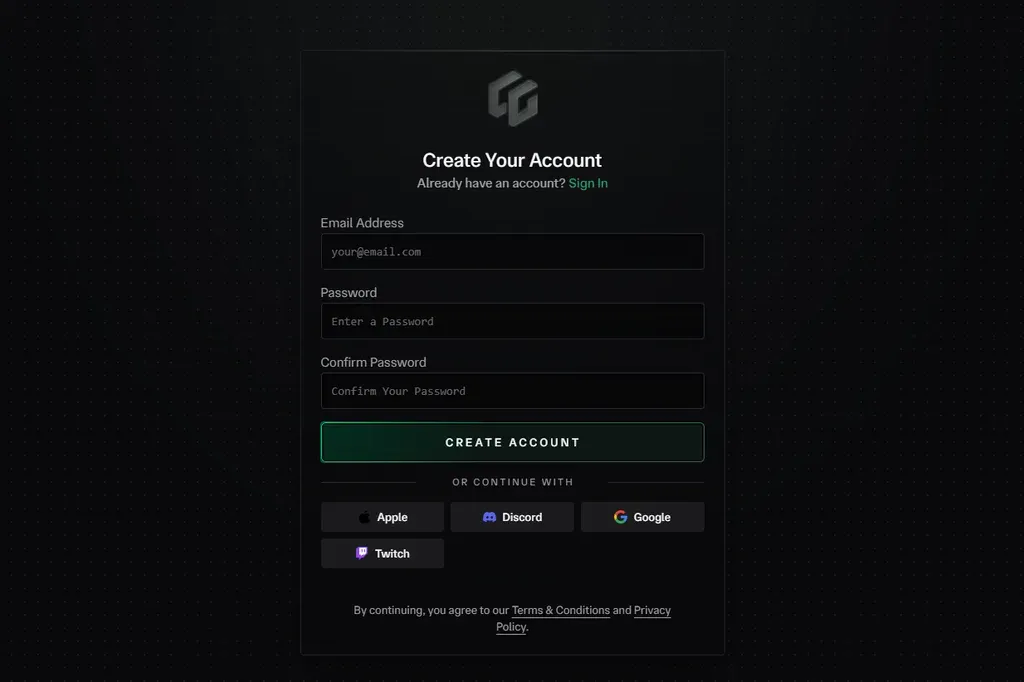
Start your free 14 day trial by creating your account inside the GameGlass Hub app. Try out all the features and experience all the content - including all of the pre-designed panels.
No credit card needed.
Get the GameGlass widget for your Xeneon Edge directly from the Elgato Marketplace. It's free and lets you easily load and use any panel.
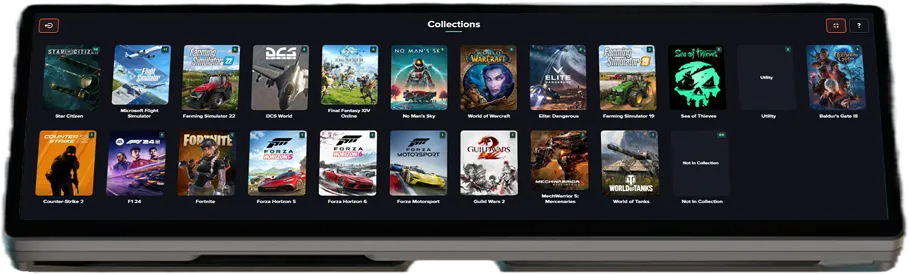 Find out more
Use the GameGlass Overlay to show a panel on any touch monitor plugged into your PC. You can launch it from the GameGlass Hub app.
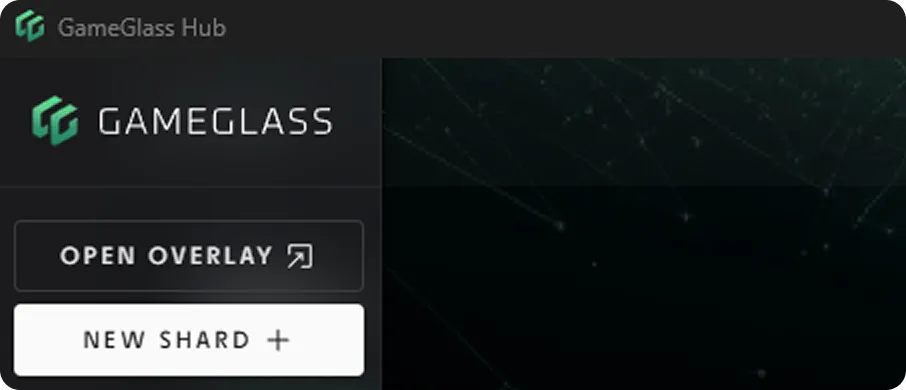 Find out more
Why don't my devices connect?
Check the Hub is open and signed in on your PC, and that both devices are on the same network.
Read the articleWhere are my panels?
In the Hub, open Explore, pick a panel and click Add to Library. It shows up in your Library tab.
Read the articleHow do I edit keybinds?
In Forge, double-click a button, open Inputs and pick Keybind: up to two modifiers plus a key.
Read the article